 PHOTOGRAPHIA
Instructions
by Nasanen
● The PHOTOGRAPHIA application is a classical* photo editor for colour and black-and-white photos. Although it is remarkably easy to use, it has a comprehensive set of features for producing high quality and beautiful photos.
● For maintaining visual simplicity and avoiding unnecessary visual clutter on the display, the features can mainly be found in menus.
● Selecting a menu item for a specific feature, e.g., for the adjustment of the tone curve, results in the displaying of a small window containing the tools for making the adjustments. The adjustments made are shown immediately in the displayed image. After clicking the OK button, the window closes, and you can choose another feature. Alternatively, you can cancel the edit by clicking the Cancel button.
● A small set of tool-like features, such as selecting an area for local processing, cropping, or cloning, can be accessed by clicking the respective buttons in a horizontal toolbar.
[*Here ‘classical’ means that adjustments are made manually, deterministically, and non-generatively, rather than applying e.g. neural-network-based tools.]

Menu File
Import/Open
‘Import’ allows you to display and edit numerous image types including e.g. JPG, HEIC, TIFF and various camera raw images such as CR2, NEF, ARW, and others.
Files of these types are first converted to PNG files and then opened. Note that the PNG format can convey virtually all the original image information.
It supports both 8 and 16 bits-per-channel images. Each colour channel, red, green, and blue, can be presented with an accuracy of 8 bits (256 different values:
0-255) or 16 bits (65536 different values: 0-65535).
How does ‘Import’ work? In the Import dialogue, first select a file to be converted using the ordinary file-open-dialogue. After this, the text ‘Converted’ appears in a text box in the dialogue. Then press ‘OK’ and the image will be displayed. Pressing ‘Cancel’ instead, will cancel the import.
How to import iPhone pictures from the Photos-application? Select the 'Import dialogue', press the ‘Select file’ button, which will display the file open dialogue. In the sidebar on the left, select ‘Photos’. After this, you can select any photo in the 'Photos' application.
Opening a PNG file. PHOTOGRAPHIA opens PNG image files directly by using the ordinary file open dialogue.
Export/Save
How does ‘Export’ work? First, press the button “Give name and type of file”.
This displays a dialogue for giving the name and type for the file to be exported. You can export images as types TIFF, HEIC, JPG, PNG, PDF, GIF, and BMP.
After pressing ‘Save’ in the dialogue, the image will be converted to the desired format and the text ‘Converted’ will appear in a text box. After pressing the OK-button,
the conversion will be saved to the disk. Pressing ‘Cancel’ will cancel the export.
Note, however, that the conversion functionality is only capable of converting picture files that are smaller than or equal to 25 mega pixels. The procedure described above
will reduce the image size to 25 mega pixels if it exceeds that size. If you don't want the image size to be reduced, you can always save the image in the usual way without size limitations.
In that case, the format will always be PNG.
Saving a PNG file. PHOTOGRAPHIA saves PNG image files using the ordinary file save dialogue.
Close Menu Item/Close Button
When clicking the Close Menu Item or the Close Button, the currently open image will immediately be closed if it has not been edited or changed after saving. If the image
has been edited but not saved, a warning message will be displayed asking whether you would like to ‘Save the PNG image before closing?’. The answer alternatives are
‘Yes,’ ‘No,’ and ‘Cancel Close.’
File Info
When a photograph is opened, its metadata is read. Metadata contains a lot of information about the picture file and camera settings.
When an edited picture is saved/exported, PHOTOGRAPHIA writes the metadata back to the picture file.
“File Info” allows you to view image metadata if it is available. You can choose ‘Selected metadata’ or ‘More detailed metadata’. ‘Selected metadata’ contains a selection of the
main metadata items in a simple list. ‘More detailed metadata’ contains a more comprehensive set of metadata available in the image file.
Display Gamma
Check Display Gamma
Display gamma describes how the display luminance (brightness) changes with the image numerical brightness value. For a typical Mac display, gamma should be close to 2.2.
Follow the instructions presented in the Check Display Gamma dialogue.
Menu Edit
Undo
A change made to the photo can be undone by choosing ‘Undo’.
Redo
An undone change can be redone by choosing ‘Redo’.
Multiple undo and redo operations can be done.
Copy to Clipboard
An image displayed can be copied to the clipboard to be used elsewhere.
Menu Monochrome Conversion
A colour photograph can be converted into monochrome, i.e., black-and-white, format. The way this conversion is done can often have a great effect on how the image grey levels look like.
Hue & Saturation Mixer Conversion
This method allows you to make the
conversion adjustment in a very simple way. There are two sliders, one for the hue and the other for saturation. Using these you can adjust the colour filter that weights the image colour components before they are averaged
into a single grey level value for each pixel of the resulting monochrome image.
Further, a very fast and easy approach is to first adjust hue and, if needed, fine-tune the result by adjusting saturation.
Menu Image
Rotate
The following image rotations can be done:
— Custom (Image can be rotated between angles -22.5 deg — +22.5 deg)
— 90 deg Left
— 90 deg Right
— 180 deg (= upside down)
Resize
Image size can be reduced or increased.
Crop
An image can be cut so that only a desired rectangular or circular part of it remains visible. This is often done to improve the composition or to remove non-essential parts of the photo.
Menu Enhance
Tone Curve: contrast, gamma, etc.
Tone curve determines how the grey level values of the original image are presented in the edited image. This feature allows you to change the contrast, darkness/lightness,
or only a part of the grey level values in the edited image virtually in an unlimited way by means of the Tone Curve dialogue.
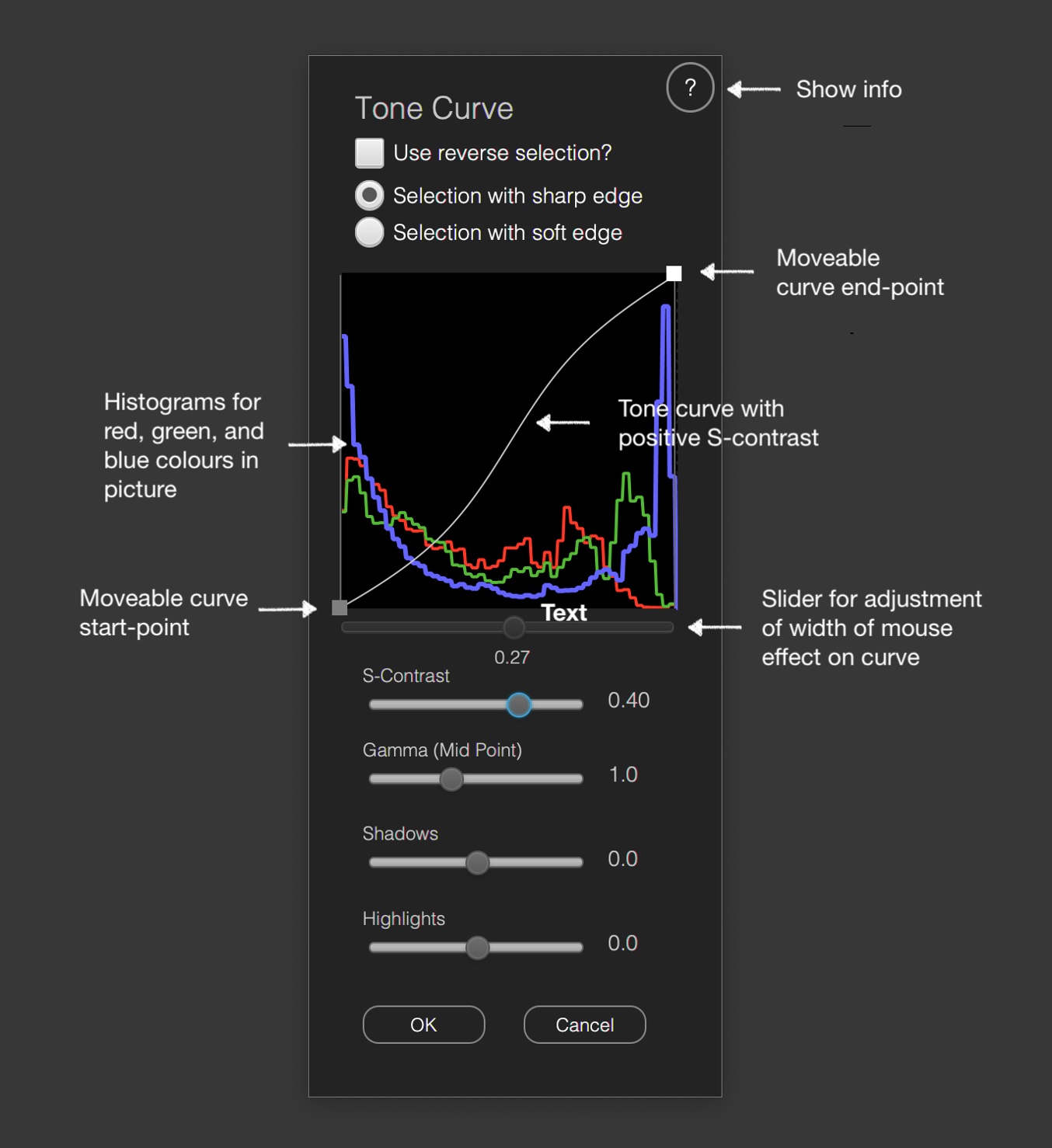
The Tone Curve dialogue shows the tone curve as well as the histogram for the image colour values from zero to the maximum value (horizontal axis). The tone curve expresses how each colour value of the image being edited will be transformed into output values (vertical axis). If the tone curve is a diagonal line from corner to corner, no transformation will occur. Therefore, the output, i.e., the resulting image, is the same as the input image. The histogram describes the proportion of each colour value in the image. If you change the tone curve, the histogram changes, too.
The tone curve can be adjusted by using the following sliders: S-contrast slider, Gamma slider, Shadows slider, and Highlights slider (described below).
In addition, the tone curve can be adjusted manually using a mouse or some other pointing device. You can modify the shape of the curve by raising/lowering it locally. The width of this effect can be adjusted using the slider just below the tone curve.
S-contrast slider. S-contrast refers to a sigmoid (s-shaped) curve, which, in the case of positive S-contrast value, increases the contrast of the image without changing the lower or higher end-points of the curve. An S-contrast value equal to zero corresponds to a direct diagonal line between the start- and end-points. A negative S-contrast value produces an inverse sigmoidal curve, which results in a lower image contrast.
Gamma slider. The gamma slider changes the exponent of the gamma curve. [The gamma curve is a power function: g(x) = xgamma, where x is the grey level value between 0.0 and 1.0]. With gamma equal to unity (gamma=1.0), the gamma curve is linear, i.e., a straight line between the start- and end-points of the curve. When the gamma value is greater than unity (gamma>1.0), the curve is non-linear and the image is darker and has a higher degree of contrast. When the gamma value is below unity (gamma<1.0), the gamma curve is non-linear and the image is brighter and has a smaller degree of contrast.
A useful tip: if you increase gamma in order to make the image a bit darker, you can reduce the increased contrast with the s-contrast slider. If you decrease gamma in order to make the image a bit lighter, you can increase the reduced contrast also with the s-contrast slider.
Shadows slider. This allows you to control the brightness of the dark tones of the image by changing the lower part of the tone curve.
Highlights slider. This allows you to control the brightness of the light tones of the image by changing the upper part of the tone curve.
How to obtain the ‘levels’ feature? The ‘levels’ feature refers to adjusting the grey level range at low or high colour level values. This can be achieved by moving the start-point rectangle and/or the end-point rectangle horizontally by mouse. Note, that the mid-levels can be adjusted by using the Gamma slider.
Adjusting maximum and minimum. The maximum and minimum grey level values can be adjusted by moving the end-point rectangle and start-point rectangles vertically by a desired degree using the mouse.
The tone adjustment feature can be restricted either to a selected circular or free-form area, or in case of reverse selection, outside these selections.
Colour Adjustment/Sepia
In PHOTOGRAPHIA, the Colour Adjustment/Sepia feature can be accessed by clicking menu item ‘Colour Adjustment/Sepia’ in the Enhance Menu. This opens a dialogue, where there is a checked pattern of various hues.
You can select one of the hues by clicking it by mouse. Below the checked pattern, there is an ‘All possible hues’ -slider by which you can select any possible hue.
Finally, there is a ‘Magnitude’ -slider. Using it, you can determine how strongly that hue is applied to the photo.
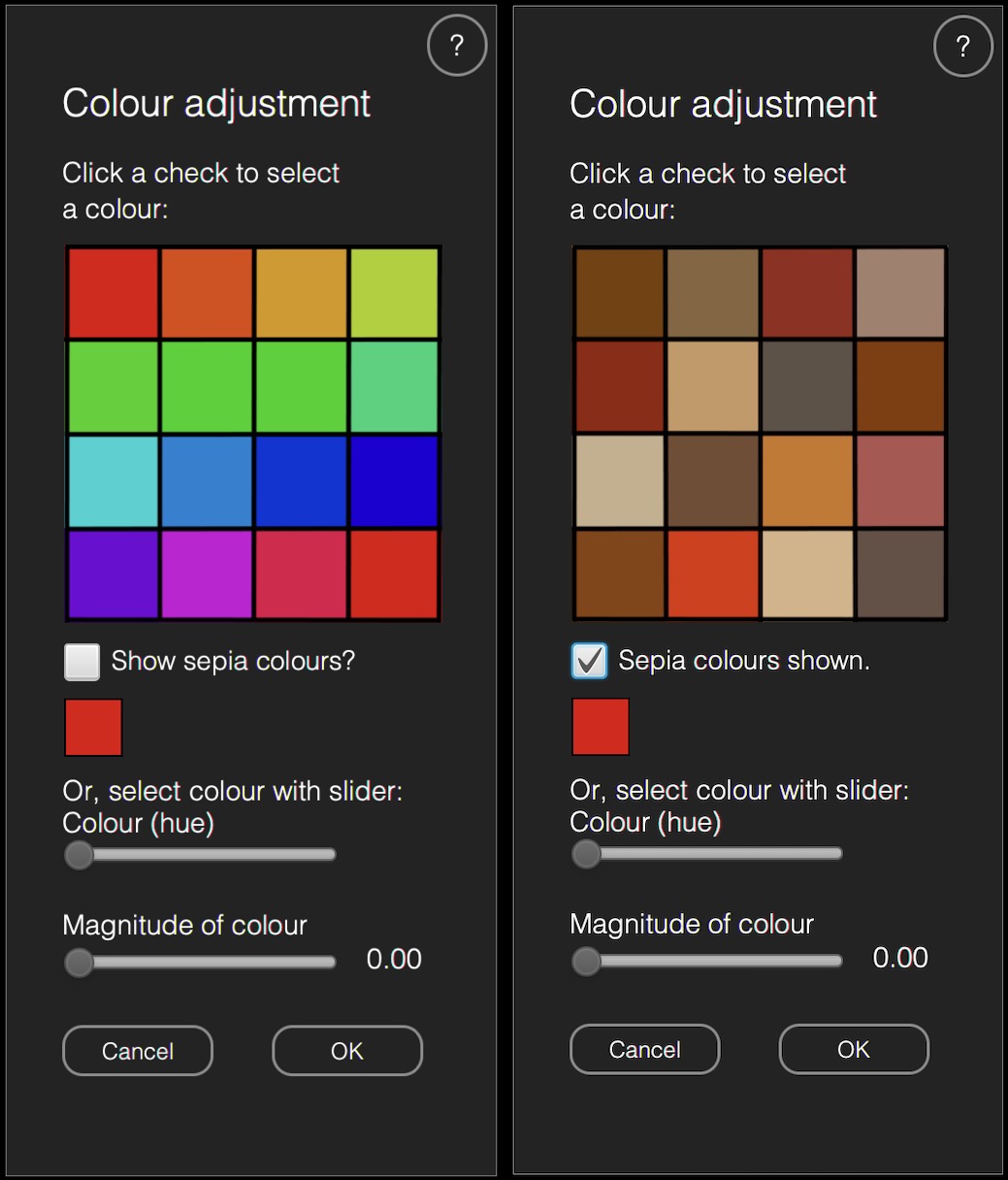
Two examples of colour adjustment windows.
In addition, you can change checked pattern to contain various brownish hues that can be used as sepia colours. This can be done so that you click the checkbox entitled 'Show sepia colours'. Clicking the check box again will show the original selection of hues.
Sepia is a traditional photographic method that gives typically black-and-white photographs a warm and brownish hue. In addition to brownish hues, digital photo editing allows using any possible hue, e.g., red, orange, or green, as well.
Vibrancy
Adjustment of “Vibrancy” either reduces or increases the colour variability, i.e. colour contrast, across a colour image. Colours will appear as brighter or less bright, depending on the adjustment.
You can use circular selection or free-form selection to limit the area where the adjustment is done. Choosing the 'Reverse Selection' option, allows you to adjust the area outside the selection area, only.
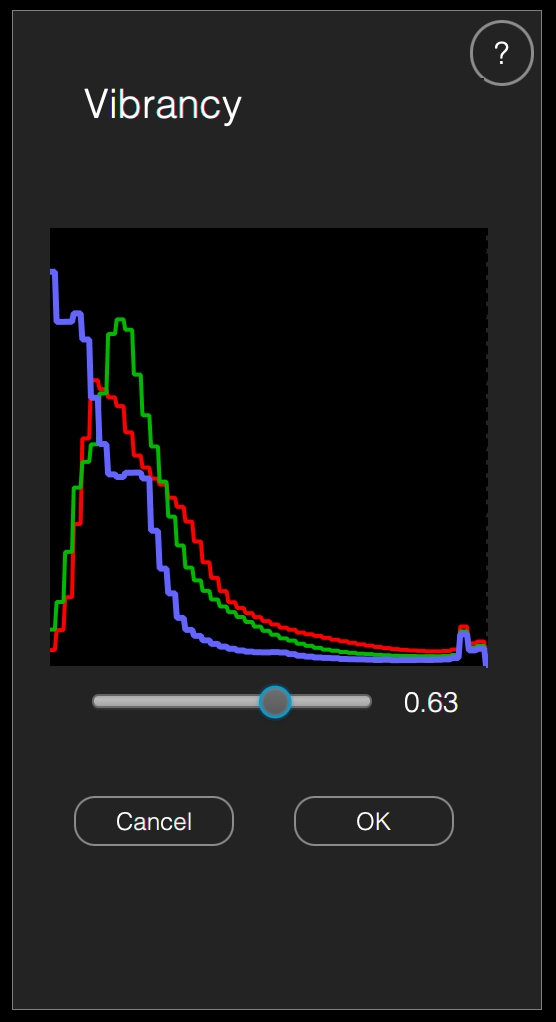
An example of vibrancy adjustment window.
Sharpen
The ‘Sharpen’ feature uses the simple unsharp-mask method for sharpening the image. In the ‘Sharpen’ dialogue, the extent of sharpening is controlled by a slider. The tone adjustment feature can be limited
either to a selected circular or free-form area, or in case of reverse selection outside the selection.
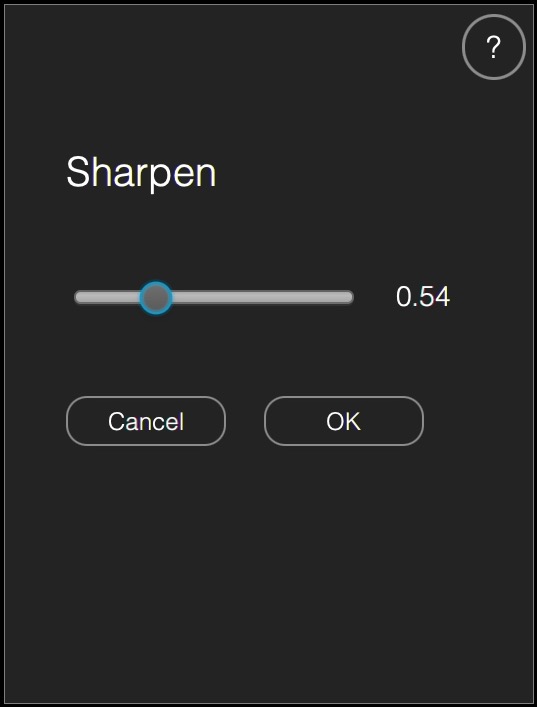
An example of sharpness adjustment window.
Blur
The ‘Blur’ feature uses the Gaussian filter for blurring the image. In the ‘Blur’ dialogue, the extent of blurring is controlled by a slider. The tone adjustment feature, too, can be restricted either to a selected
circular or free-form area, or in case of reverse selection outside the selection.
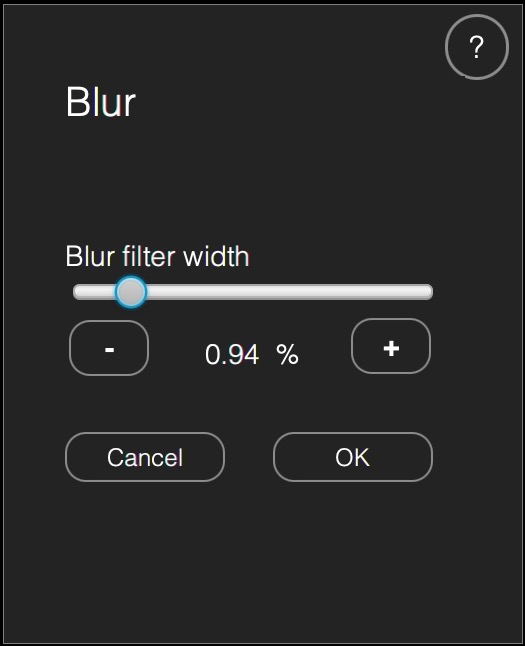
An example of blur adjustment window.
Vignette
Vignette is a technique by which the corners and edges of a photograph can be made darker or lighter than the centre. Here, the shape of the vignette is oval,
where the width and height are proportional to the width and height of the picture. In the ‘Vignette’ dialogue you can adjust the size, softness and the strength of the vignette.
Softness refers to gradual change of lightness at the border of a vignette edge. Strength zero means that there is no vignette visible. Strength +1.0 means that the vignette is black,
and strength -1.0 means that the vignette is white.
A very subtle vignette effect can be created by using a high value of softness together with a slightly greater or smaller than zero strength.
A vignette can, for example, be used to emphasize the centre part of the picture, or to produce some additional subtle tonal change in an image having large surfaces of even colour or grey level.
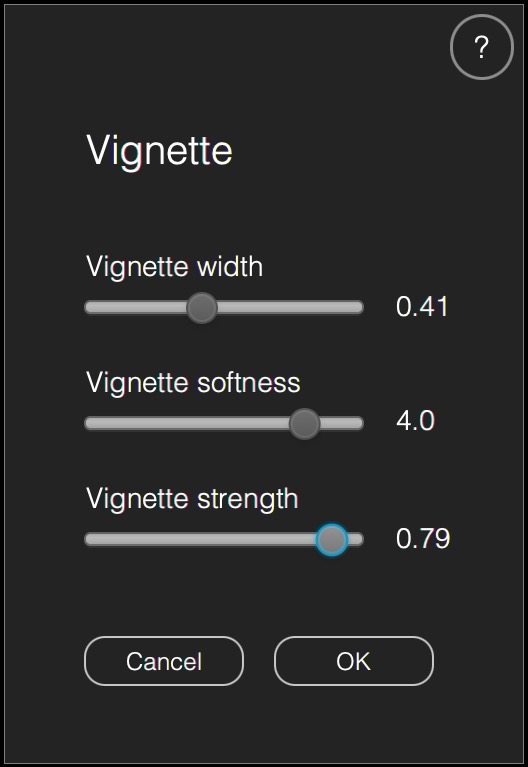
An example of vignette adjustment window.
Add Border
This feature allows you to create a line around the image. For a rectangular image, the line is rectangular.
If you have used circular cropping, the line is circular. There are two sliders with which you can adjust the width of the line and its lightness.
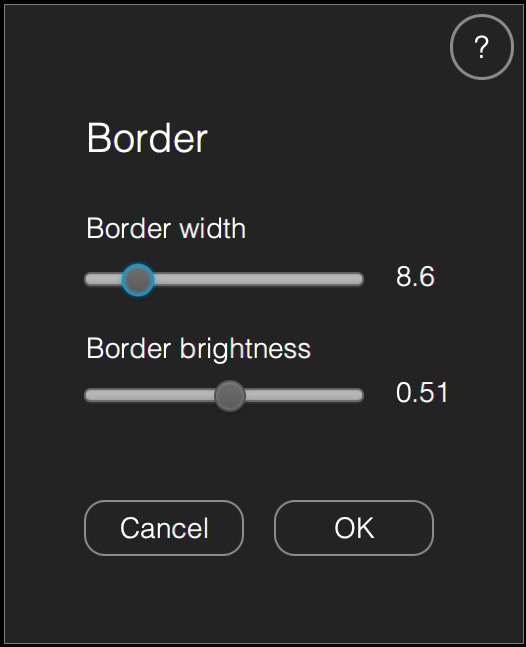
An example of border adjustment window.
White point correction
If there are image areas that should look white or neutral grey, they can be corrected to white or neutral grey by using the 'White point correction' feature. Click the menu item and, after that, click the point
in the image that should look white or neutral grey. The app changes the image colours so that that point should look approximately neutral grey or white.
Menu View
Zoom In
‘Zoom in’ will display the photo as lager.
Zoom Out
‘Zoom out’ will display the photo as smaller.
Fit to Window
This will adjust the size of displayed so that it will comfortably fit into the window.
Background brightness
In the PHOTOGRAPHIA application, background brightness can be adjusted easily and quickly. Background may affect greatly on the perception of the overall lightness of a picture.
Therefore, it is very useful to do picture editing in the presence of such a background on which the picture is meant to be displayed or to check that the tone adjustments work well with different
background brightness values.
Set Background Brightness to White (Default)
This will set the background brightness to 240.
Set Background Brightness to Bright White
This will set the background brightness to the maximum, that is 255.
Set Background Brightness to Light Grey
This will set the background brightness to 186.
Set Background Brightness to Mid Grey
This will set the background brightness to 128.
Set Background Brightness to Dark Grey
This will set the background brightness to 55.
Set Background Brightness to Black
This will set the background brightness to 0.
Increase Background Brightness
This increases the background lightness a little (one 255th the maximum brightness value).
Decrease Background Brightness
This decreases the background lightness a little (one 255th of the maximum brightness value).
Toolbar Buttons
Close Button
Clicking this button results in closing the picture document, if it has been edited and saved.
Rect. Select Button
You can select a rectangular area inside the picture for cropping. Clicking the 'Rect. Select' button results in adding an adjustable grid on the displayed picture. At first, the grid is of the same size as the picture displayed.
You can adjust the size and the location of the grid by using the mouse. The border(s) of the grid can be moved by dragging the corners or sides of the grid. When the grid is smaller than the displayed picture,
you can drag it by mouse so that the mouse cursor (hand) is inside the grid.
Circ. Select Button
Circular selection allows you to do circular cropping. In addition, you can edit the picture within the circular selection, or when
you choose inverse selection in the area outside the circular selection. This applies to Tone Curve, Colour Adjustment/Sepia, Vibrancy, Sharpen Image, or Blur Image features.
After circular cropping, the background will be fully transparent. The transparency will be preserved in the saved PNG files and exported HEIC files. In the exported JPG files, however,
the background will be white. Standard JPG images do not have an alpha, i.e., a transparency channel.
Freeform Select Button
Free-form selection allows you to make a selection of any shape. The selection is done by painting the area to be selected with semi-transparent red. The size of the brush can be adjusted with the 'Freeform Select/Clone size' slider.
As with the circular selection, you can edit the picture within or outside the selection, and the border can be either sharp or soft. This applies to Tone Curve, Colour Adjustment/Sepia, Vibrancy, Sharpen Image, or Blur Image features.
Clone Button
Cloning allows you to copy pixels from one location to another. The borders of the pixel arrays at the destination positions are smoothed. Cloning can be used, for example, to remove unwanted ‘blemishes’ in the picture.
The size of the clone area can be adjusted using the slider on the right-hand side of the Clone Button.
Cloning can be done in the following way: Press the Clone button. Set the size of the clone tool. Move the mouse cursor to the source area and press the option/alt button briefly. Move the mouse cursor to the start point of the destination area. Finally, keep the left mouse button pressed and move the mouse. Then the pixels will appear in the destination area.